How to add a home configurator to your website
Turn your floor plans into a configurator customers use on your own website: models, layouts, finishes and extras with a live price in 2D and 3D, and quote requests to your inbox.
7 min read · Updated October 22, 2026
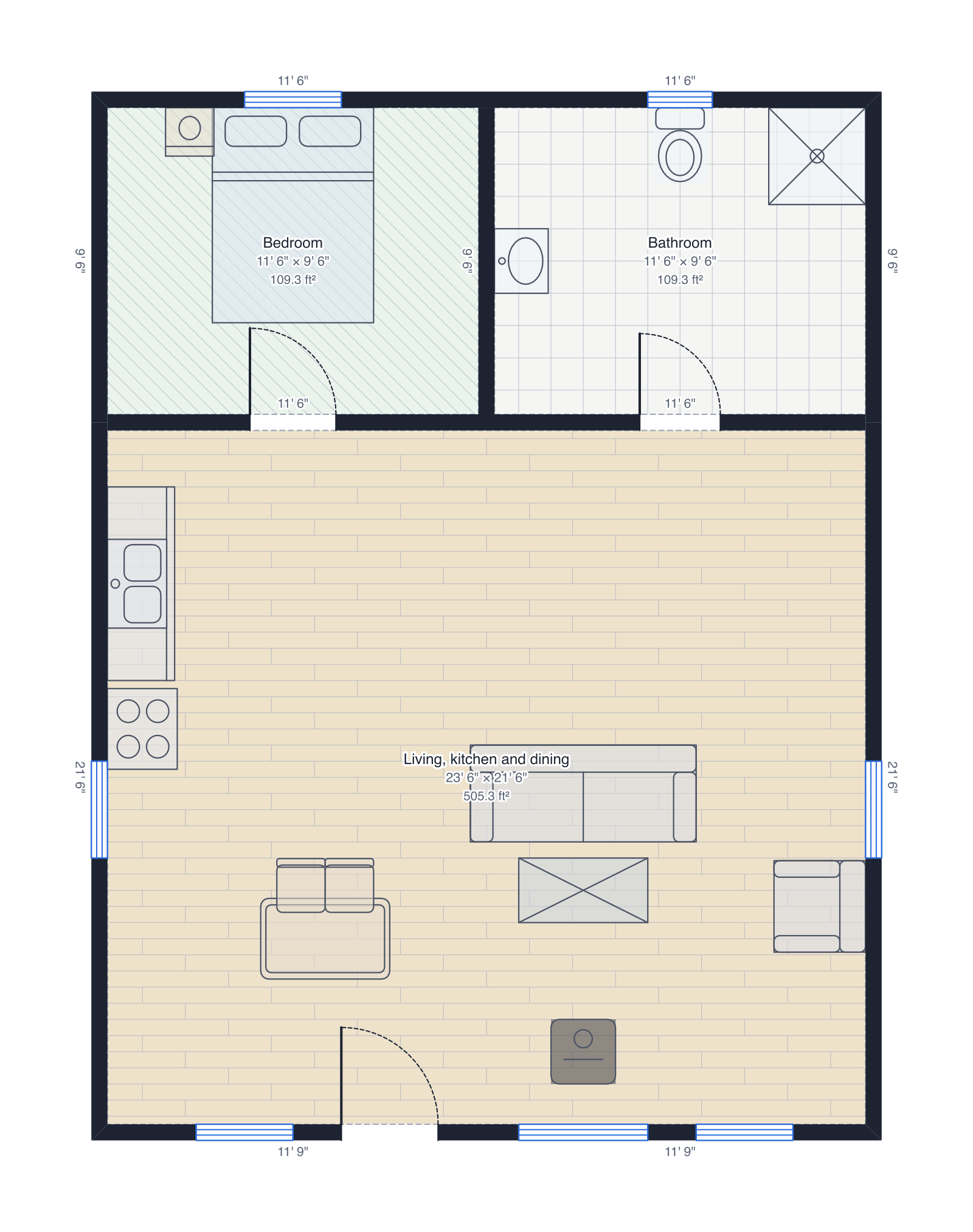
If you sell homes, cabins, tiny houses or container homes, your customers want to know two things before they call: what it will look like, and what it will cost. A configurator on your website answers both. They pick a model, a layout, finishes and extras, see the home in 2D and 3D with the price adding up as they choose, and send you a quote request with everything they picked. You build it from the floor plans you already draw in DrawPlans; there's a working one to try on the home configurator page.
1. Draw each model and layout as a plan
Every layout a customer can choose is one plan in your account: the walls, doors, windows, rooms and furniture, drawn to scale. Draw them, or start from a template such as the A-frame cabin, the tiny house or the two-container home and change them to match what you build. Give each plan a clear name, like "Lake cabin, 2 bedrooms"; you'll pick them from a list.
2. Create a configurator
Open the account menu and choose Configurators, then New configurator, and give it a name (customers don't see it). Configurators come with the monthly and yearly plans; the pricing page has the details.
3. Add your models, layouts and prices
A model is what you sell, with its base price: "A-frame cabin, $89,000". Each model has one or more layouts, and each layout is one of your plans with a price difference from the base: "With sleeping loft, +$18,500". A cheaper layout can have a negative difference. The total a customer sees is always worked out from these prices, on our server, so nobody can send you a quote for a price you didn't set.
4. Offer finishes and add-ons
Under Finishes, tick the exterior, floor and wall finishes customers may choose, give each a price difference, and pick the one they start with. The plan in 2D and 3D changes as they choose. Under Add-ons, list the extras you sell with their prices: a covered porch, a wood stove, solar panels, a deck. If an add-on is placed in one of your plans, pick it there and it appears in the customer's plan when they add it. The covered porch, wood stove and solar panels are in the library, drawn at real size.
5. Brand it and check the preview
Add your company name, logo and accent colour; the configurator shows them, with a small "Powered by DrawPlans" link at the bottom. List the websites allowed to show it, like www.yourcompany.com; no other site can embed it. Set the email that should receive quote requests. Then step through the live preview beside the form exactly as a customer would, in 2D and 3D, and save.
6. Publish and paste the embed code
Press Publish, then Get embed code, and paste the code into a page of your website (an HTML or embed block in Wix, Squarespace, WordPress and most site builders). When a customer sends a quote request, you get an email with their details, their choices and the total, and they get a copy. Every request is also listed on the configurator's page, and Download CSV puts them in a spreadsheet. Change a price or a plan any time and press Save: the configurator on your website updates straight away.
Draw yours in DrawPlans
Type your measurements and the plan is to scale from the first wall. Furniture at real size, a 3D view, and a PDF that prints at the scale you choose, with a scale bar. You can draw one plan and see it in 3D before paying.
Start drawingTemplates to start from
- A-frame cabin24' × 32', steep roof to the ground, bedroom, bath and an open great room.
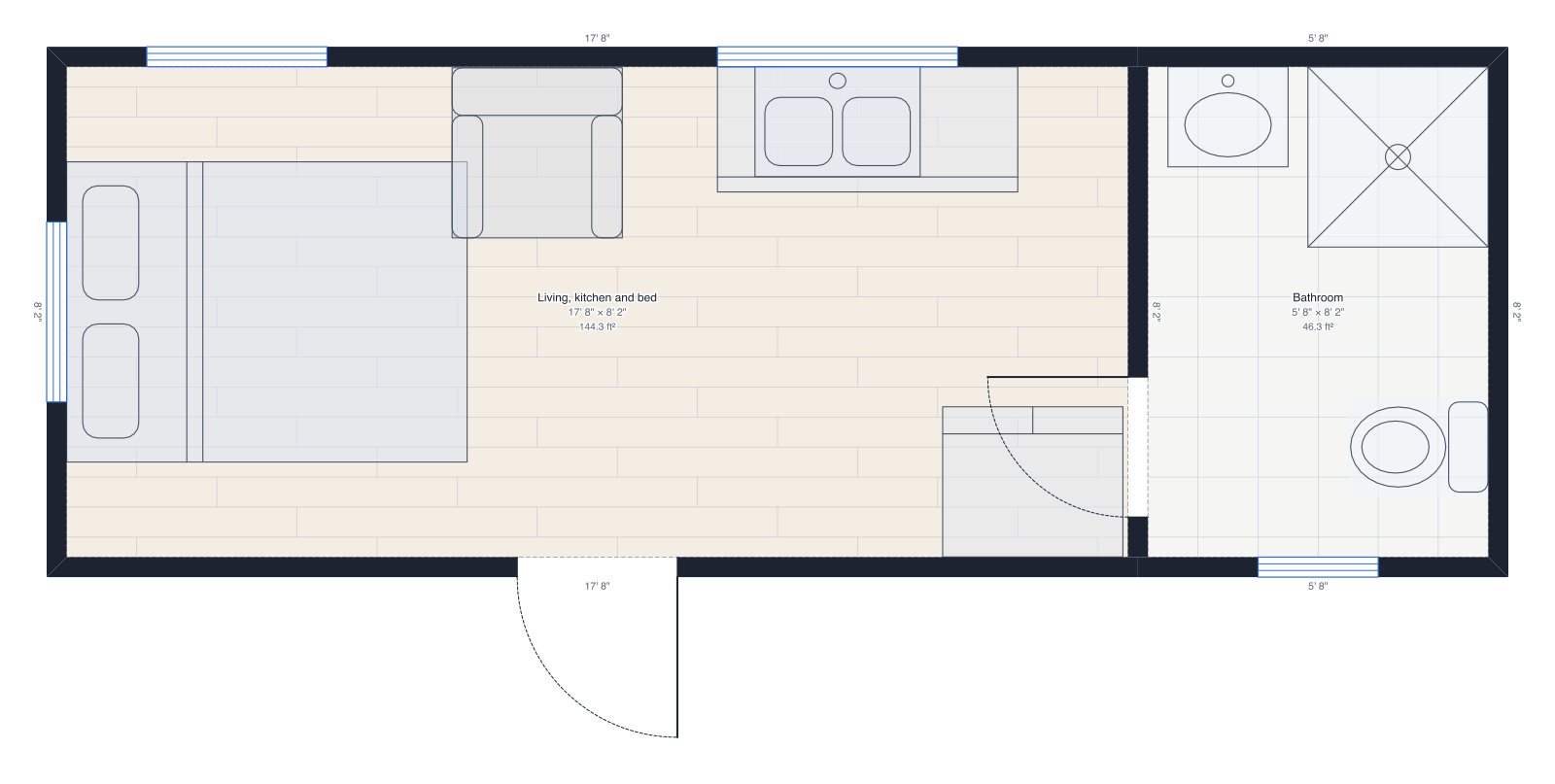 Tiny house24' × 8' 6", bed, kitchen, living space and a bathroom.
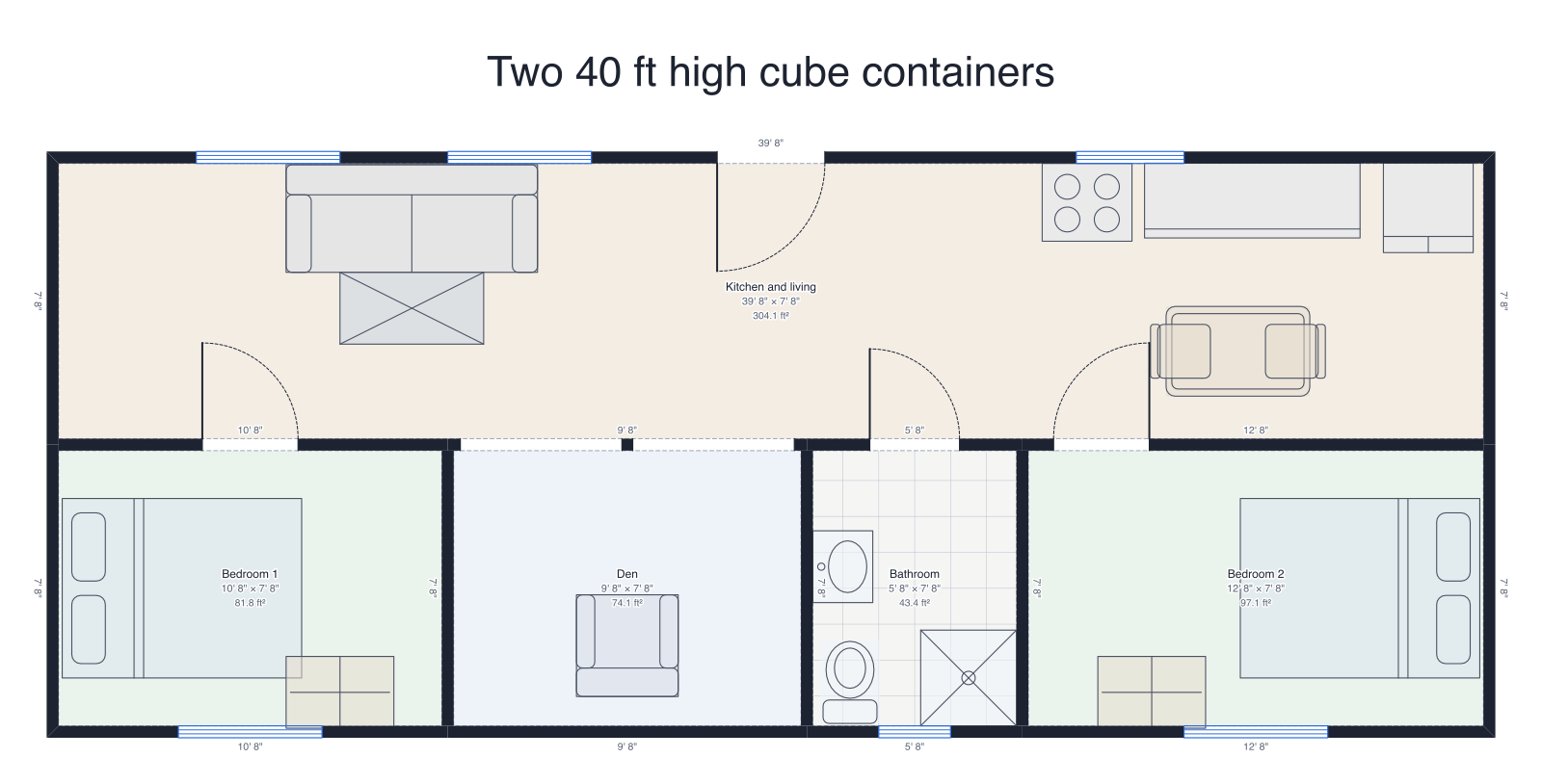 Two 40 ft container homeTwo high cubes side by side, joined by wide openings: kitchen and living, two bedrooms, den, bath.
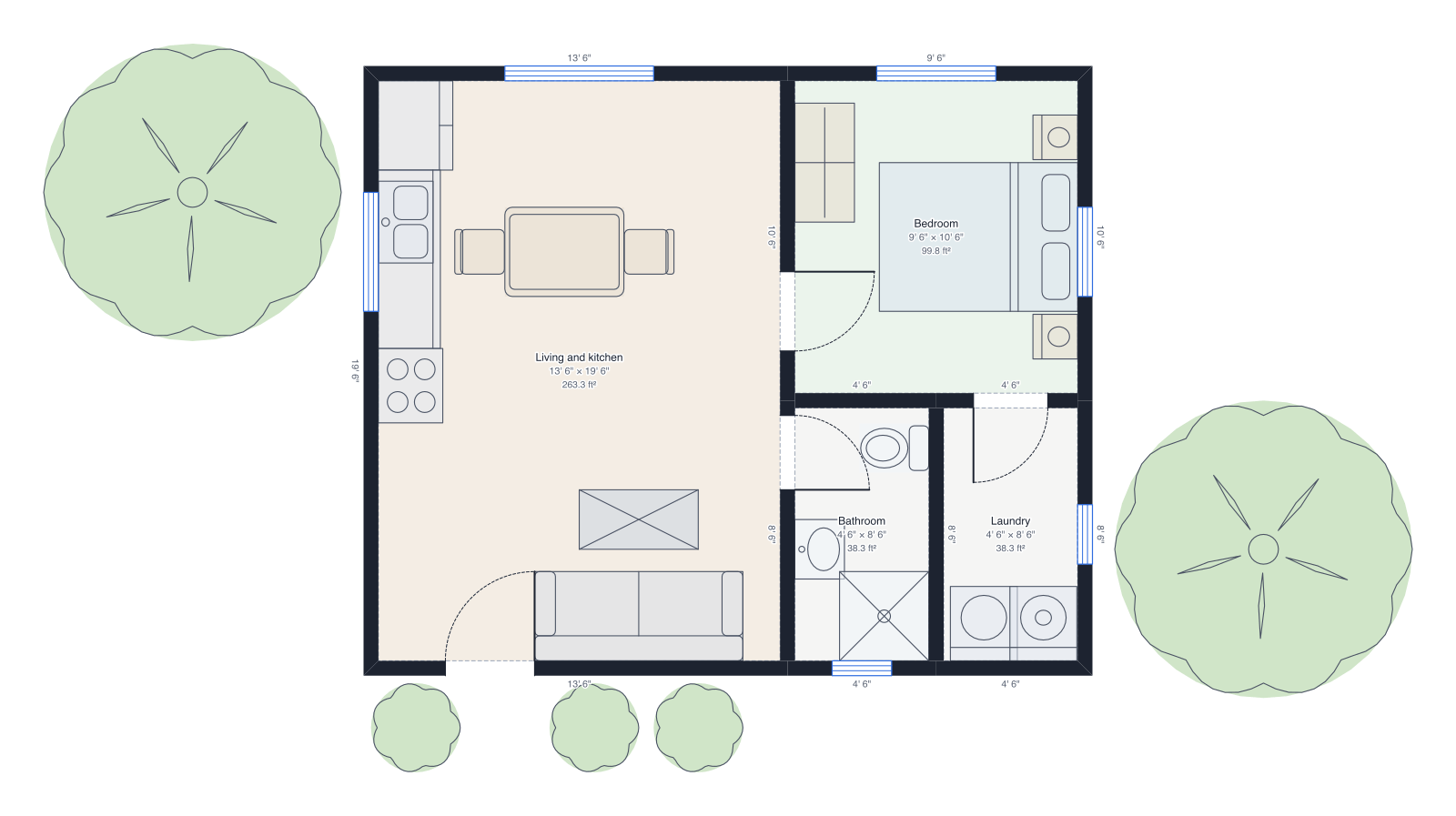 Backyard cottage (ADU)24' × 20', one bedroom, bathroom and laundry, with a garden.
Questions people ask
- Do my customers need a DrawPlans account?
- No. They use the configurator on your website without signing up. They give their name and email only when they send you a quote request.
- Can customers change the walls or the layout?
- No. Walls and structure are always locked. Customers choose between the models and layouts you offer, the finishes you allow and the add-ons you list.
- Which plans include configurators?
- The monthly and yearly plans. The 30-day pass doesn't include them. You can draw your plans and try the preview before you choose.
- Will it work on Wix, Squarespace or WordPress?
- It works on any website builder that lets you add an HTML or embed block. The embed code is an iframe and a few lines of script that size it to its content; where scripts aren't allowed, the iframe still works at a fixed height.