Turn a floor plan into a photo-real AI render
How to turn a floor plan into a realistic AI render of the finished room or house: set up the 3D view, pick one of 30 styles and get a good result.
5 min read · Updated October 24, 2026
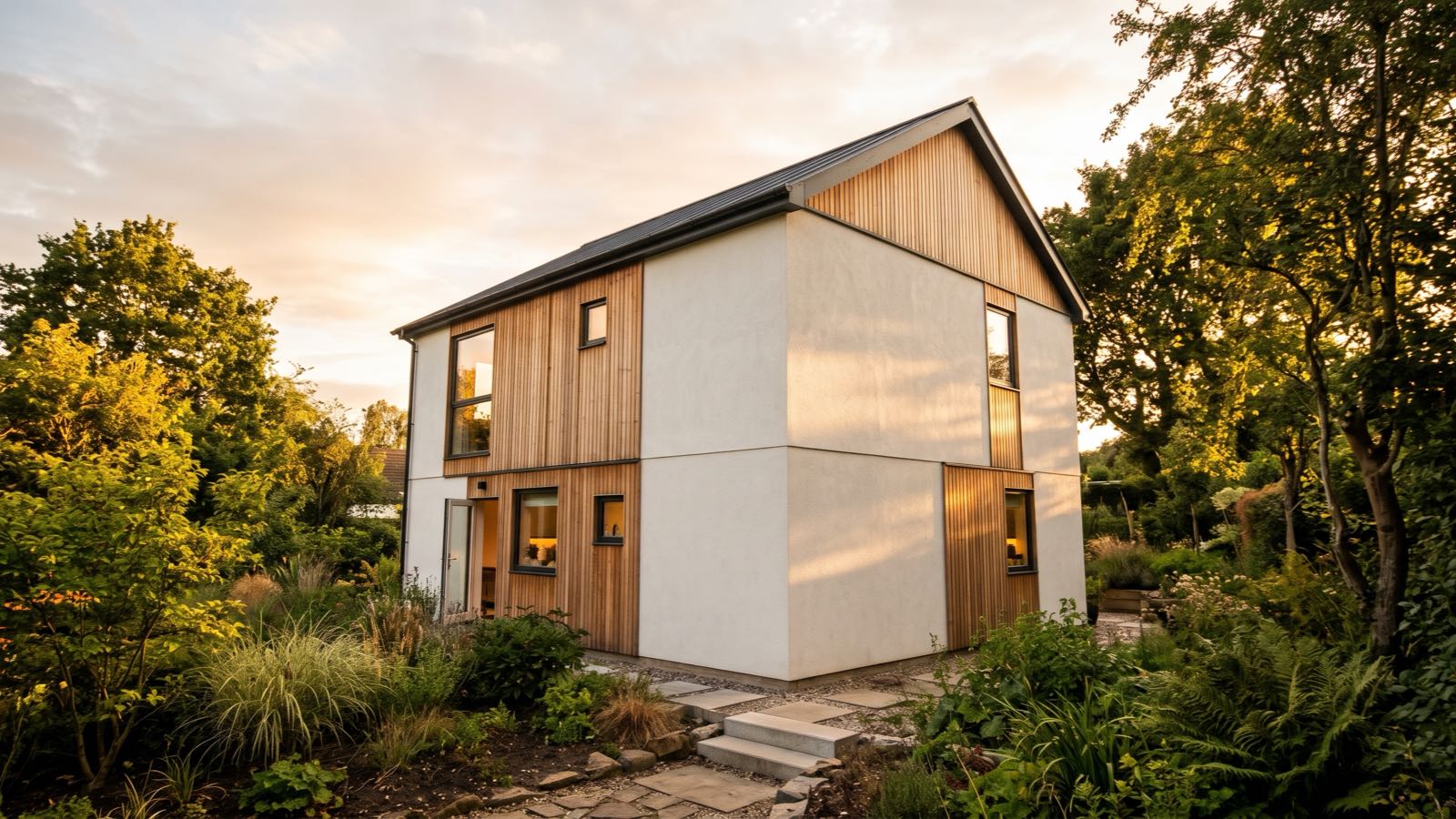
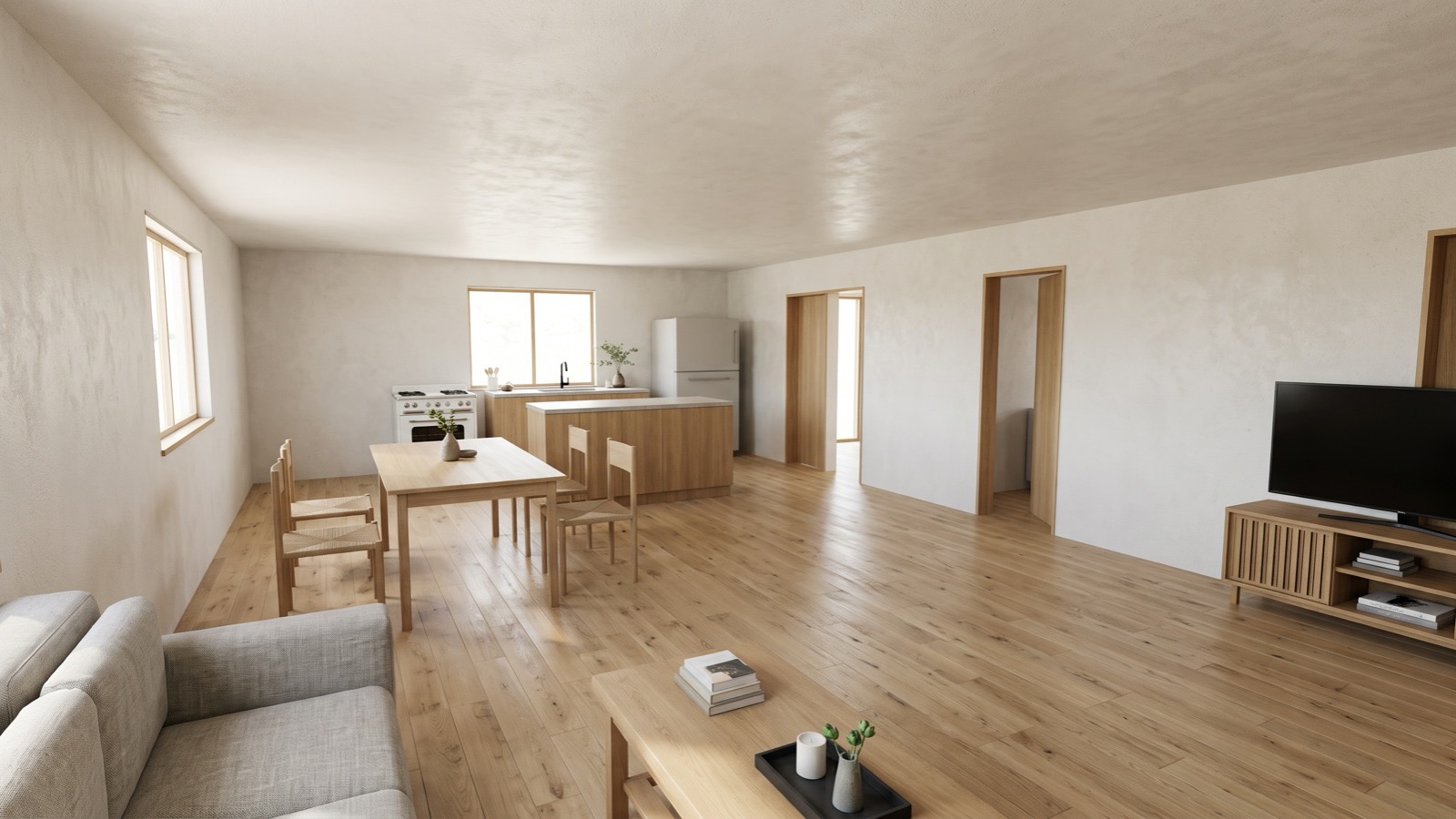
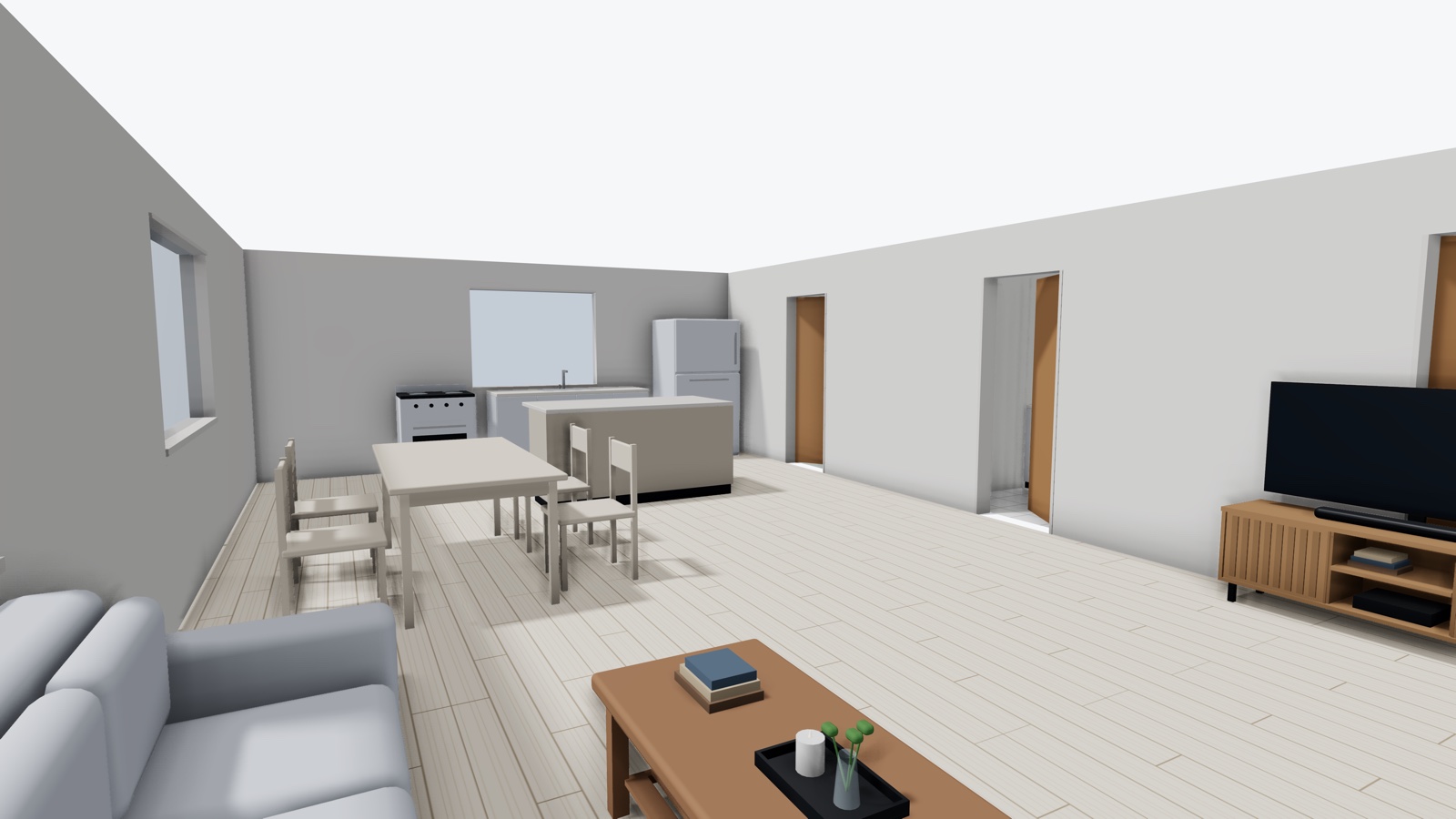
A floor plan shows where everything goes; a render shows what it will feel like. DrawPlans turns any view of your plan in 3D into a realistic picture of the finished room or house, in the style you choose. The walls, windows, doors and furniture stay where you drew them, so the picture matches the plan. Drag across the picture below to compare the 3D view with the render.
1. Draw the plan, or start from a template
The render is made from your plan, so it shows what you drew: draw the walls at their real lengths, add the doors and windows, and name the rooms. The guide to drawing a floor plan to scale walks through it. To try renders straight away, start from one of the 47 templates, such as the kitchen or the two-storey house.
2. Add finishes and furniture
Give each room a floor and a wall finish, the house its outside walls, and put a roof on it. DrawPlans tells the AI each room's floor and walls and the outside finish, so a render of a room with an oak floor shows an oak floor. Place the furniture too: the render keeps every piece in the same place and size, and an empty room renders as an empty room.
3. Frame the view in 3D
Switch to 3D and move the camera to the picture you want; the render keeps exactly this view and never moves the camera. A few views that work well:
- Inside, stand in a corner of the room at eye level and look across it, so you see two or three walls and the furniture.
- Outside, step back far enough to see the whole front, a little to one side so two walls show, with the roof on.
- For an open-plan space, stand at one end and look along it.
4. Pick a style and the light
Choose Photo-real render in the 3D toolbar. DrawPlans offers the styles that fit the view: inside a room, 16 home styles from Modern and Scandinavian to Rustic cabin and Luxury, and 4 for offices, shops, restaurants and halls; outside the walls, 10 styles from Craftsman and Ranch to Log cabin and Tropical. Then pick the time of day (day, golden hour, night, overcast) and, outside, the season and the garden. Under Describe your own style you can add a few words of your own, such as "green kitchen cabinets", up to 150 characters.
5. Generate, or compare styles
Choose Generate. A render takes about 20 to 40 seconds and appears in the panel with a slider to compare it with the 3D view. Not sure between Japandi and Scandinavian? Choose Compare styles, tick 2 or 3, and they're made one after another and shown side by side. A render that fails isn't counted.
6. Download and share it
Every render is saved to your account with the 3D picture it was made from: Saved renders in the account menu shows them all, and Open plan in 3D takes you back to the same view to try another style. When you download one, choose what goes in its corner: nothing, a small Made with DrawPlans mark, or your own logo and name. If you use a render in a listing or a presentation, say it's an AI visualization of the plan.
The monthly and yearly plans include 20 renders every billing month and the 14-day pass 10; extra packs are on the pricing page. For the steps inside the editor, see Help.
Draw yours in DrawPlans
Type your measurements and the plan is to scale from the first wall. Furniture at real size, a 3D view, and a PDF that prints at the scale you choose, with a scale bar. You can draw one plan and see it in 3D before paying.
Start drawingTemplates to start from
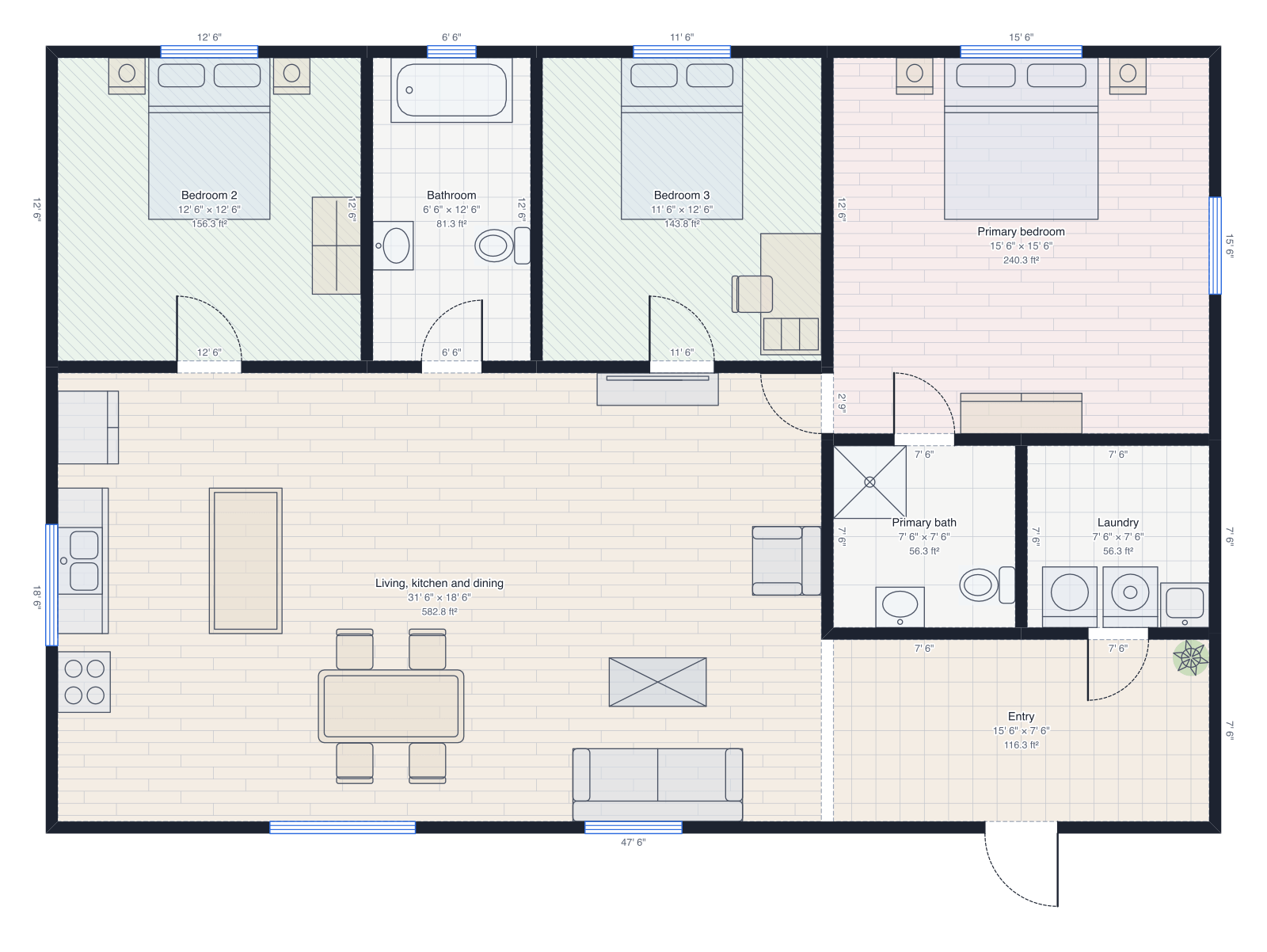 Three-bedroom house48' × 32', primary suite, two bedrooms, open kitchen, laundry.
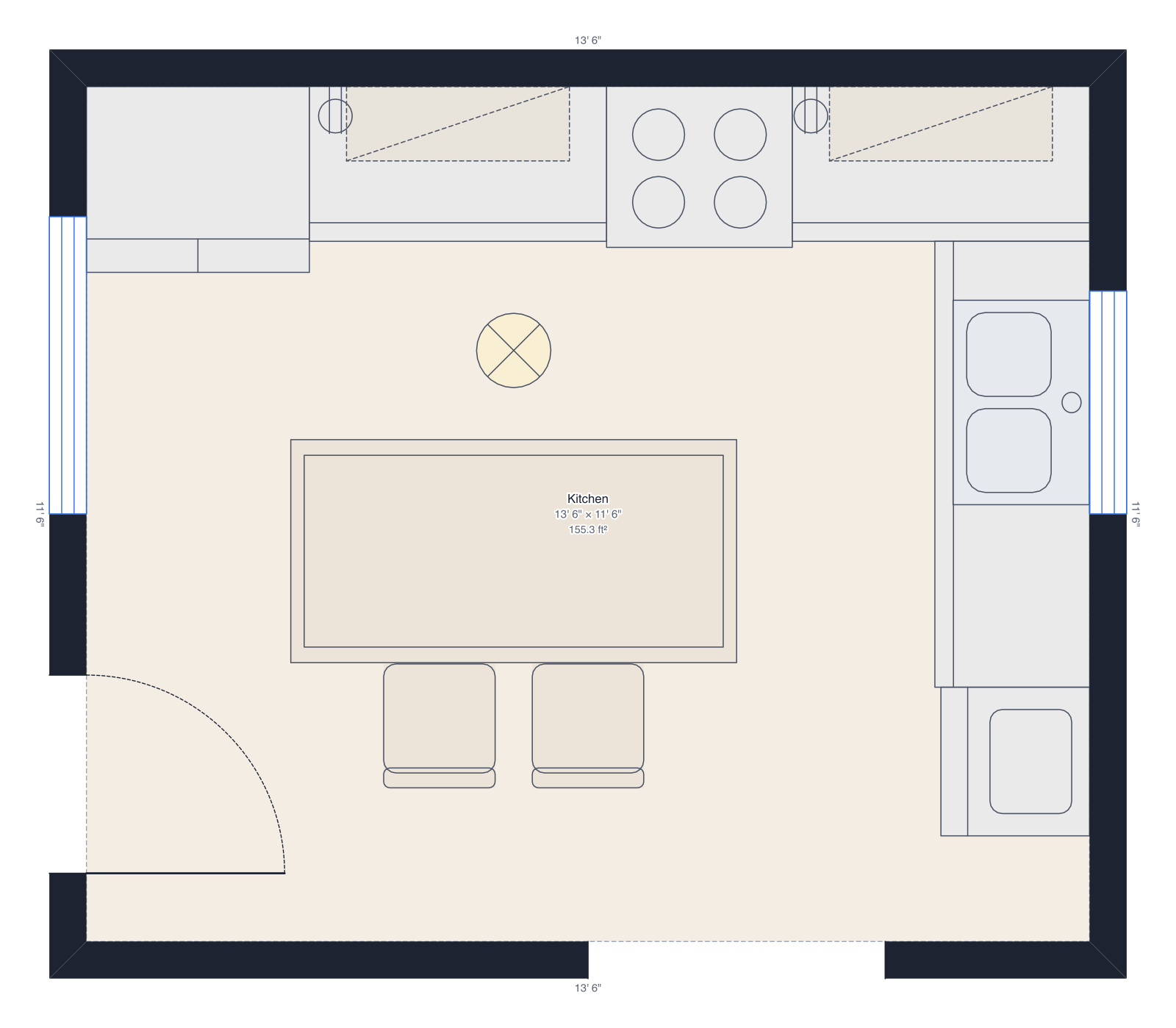 Kitchen14' × 12', island, sink under the window, dishwasher.
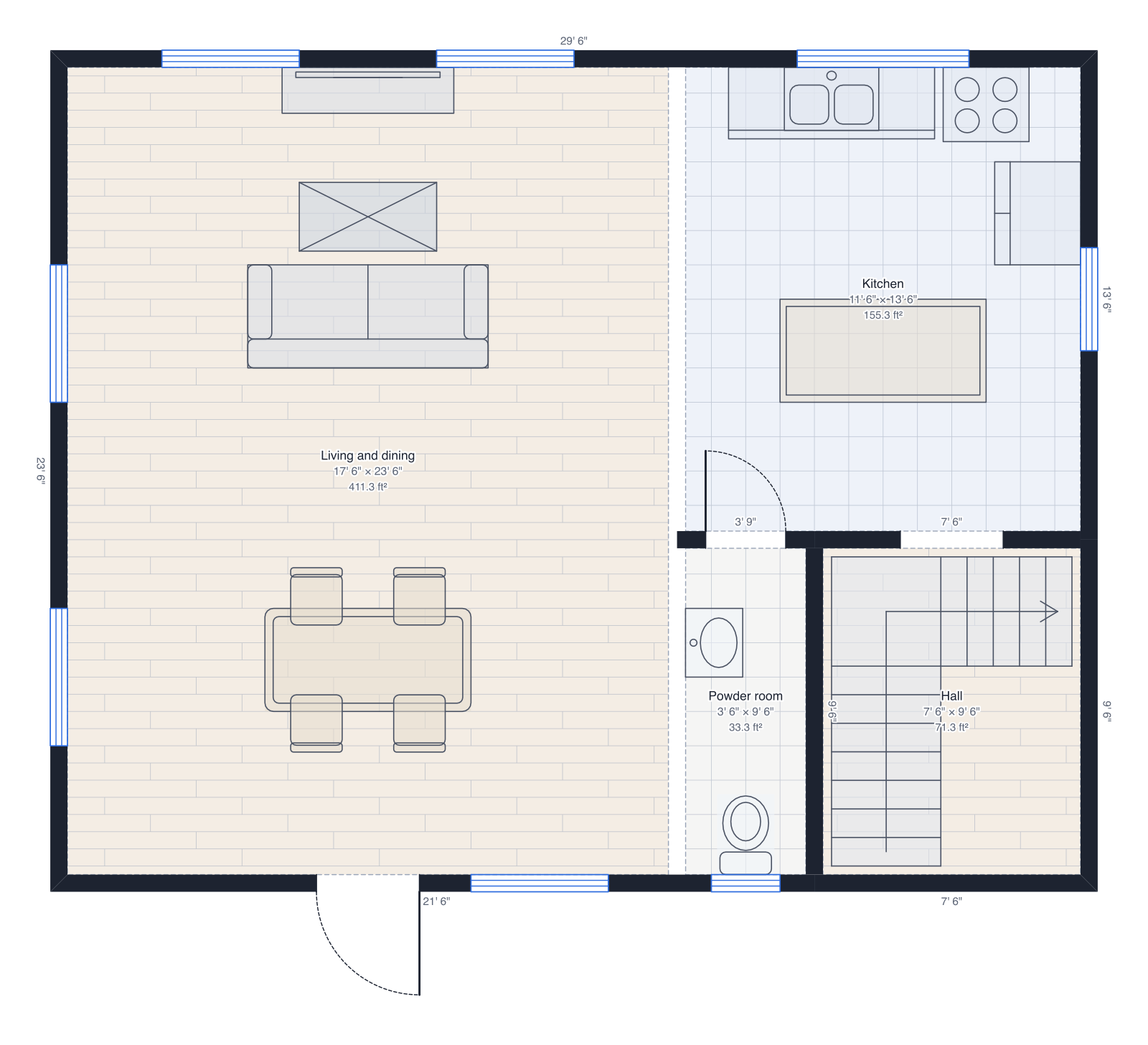 Two-storey house30' × 24' on two floors: living and kitchen downstairs, three bedrooms up, a roof.
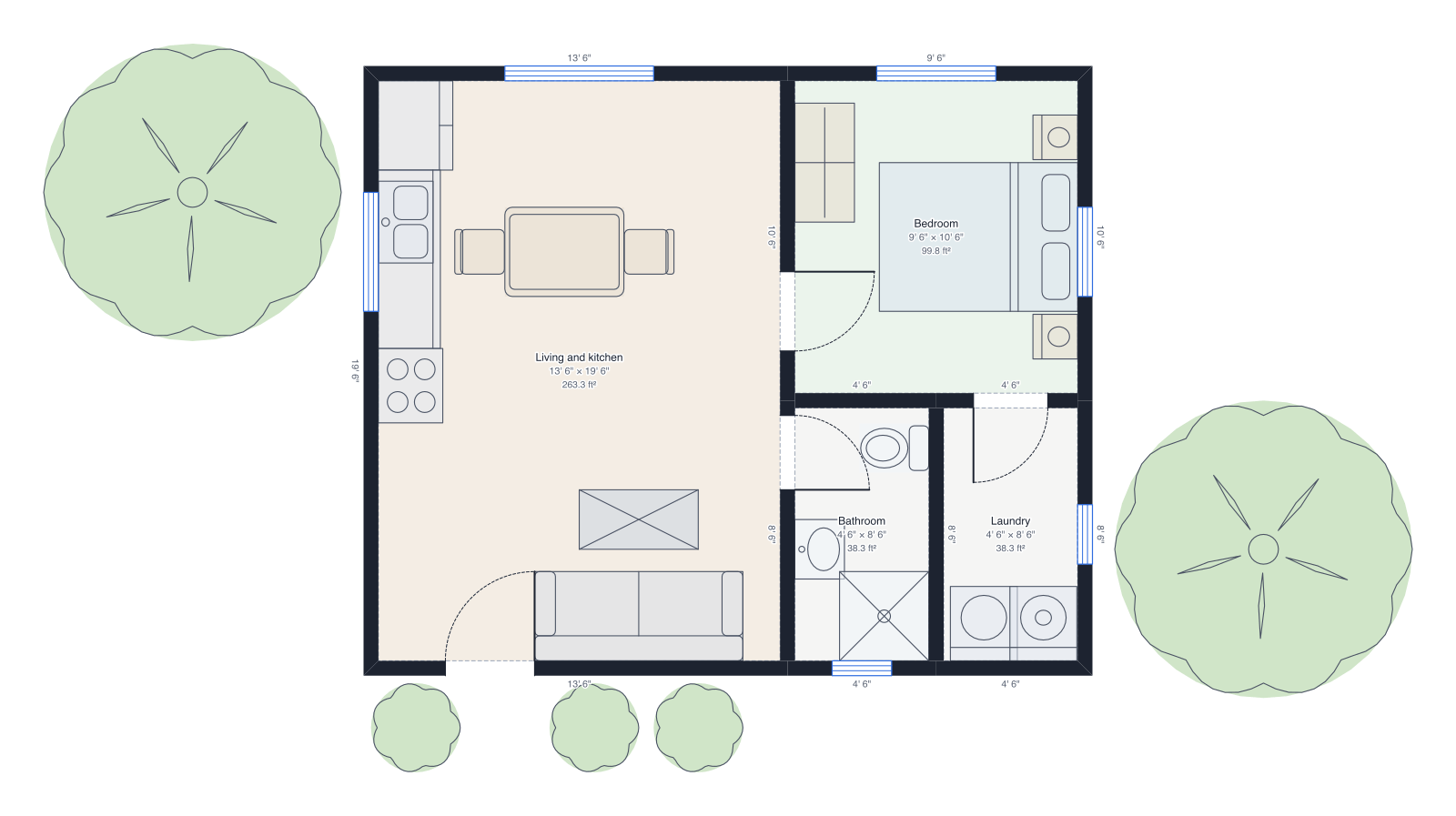 Backyard cottage (ADU)24' × 20', one bedroom, bathroom and laundry, with a garden.
Questions people ask
- Will the render change my layout?
- No. DrawPlans asks the AI to keep every wall, window, door, opening and piece of furniture in the same place and size, not to add or remove windows and doors, and not to move the camera. It's an AI visualization, so small details can differ: take sizes from the plan itself.
- How many renders do I get?
- 20 every billing month with the monthly and yearly plans, and 10 with the 14-day pass. Unused ones don't roll over. If you need more, packs of 25 ($4.99) or 100 ($11.99) are used after your plan's renders and never expire while your account is open. A render that fails isn't counted.
- Which styles are there?
- 30 in all: 16 for homes, from Modern and Japandi to Modern farmhouse and Container home; 4 for offices, shops, restaurants and halls; and 10 for the outside, from Craftsman and Colonial to Log cabin and Barndominium. DrawPlans offers the ones that fit the view.
- Can I render the outside of a house?
- Yes. Stand outside the walls in 3D and the outside styles appear, with the season (summer, autumn, winter with snow) and the garden (lush garden, simple lawn, desert). Keep the roof on so the render shows a finished house.
- Can I use a render in a listing or a client presentation?
- Yes. Download it without a logo, with a small Made with DrawPlans mark, or with your own logo and name if your account has branding set up. Say it's an AI visualization of the plan, not a photo of a finished building.
- Do I need a plan to make renders?
- Yes. Renders come with the monthly, yearly and 14-day plans. Without one you can still draw a plan with every tool and look around it in 3D.